
Grade the page you're on against Nielsen's 10 heuristics.
Sarudo Web Analysis shows what makes a web page hard to use, and how to fix it. Click it on any website for a score out of 100, a letter grade from A to F, and the top problems first, each with a concrete fix.
- Runs on
- Mac, Windows, Linux
- Needs
- Chrome 121+, Python 3.10+
- Account
- None needed
It isn't in the Chrome Web Store yet, so you add it to Chrome yourself: download both files, then follow the setup steps below.
Download
You need both parts.
The extension
The button in Chrome's toolbar and the report you see.
Download the extensionsarudo-web-analysis-1.0.1.zip · 155 KB
The scoring server
A small program that works out the grade, on your own computer. You install it once.
Download the serversarudo-web-analysis-server-1.0.0.zip · 17 KB
A usability check for the page you're on.
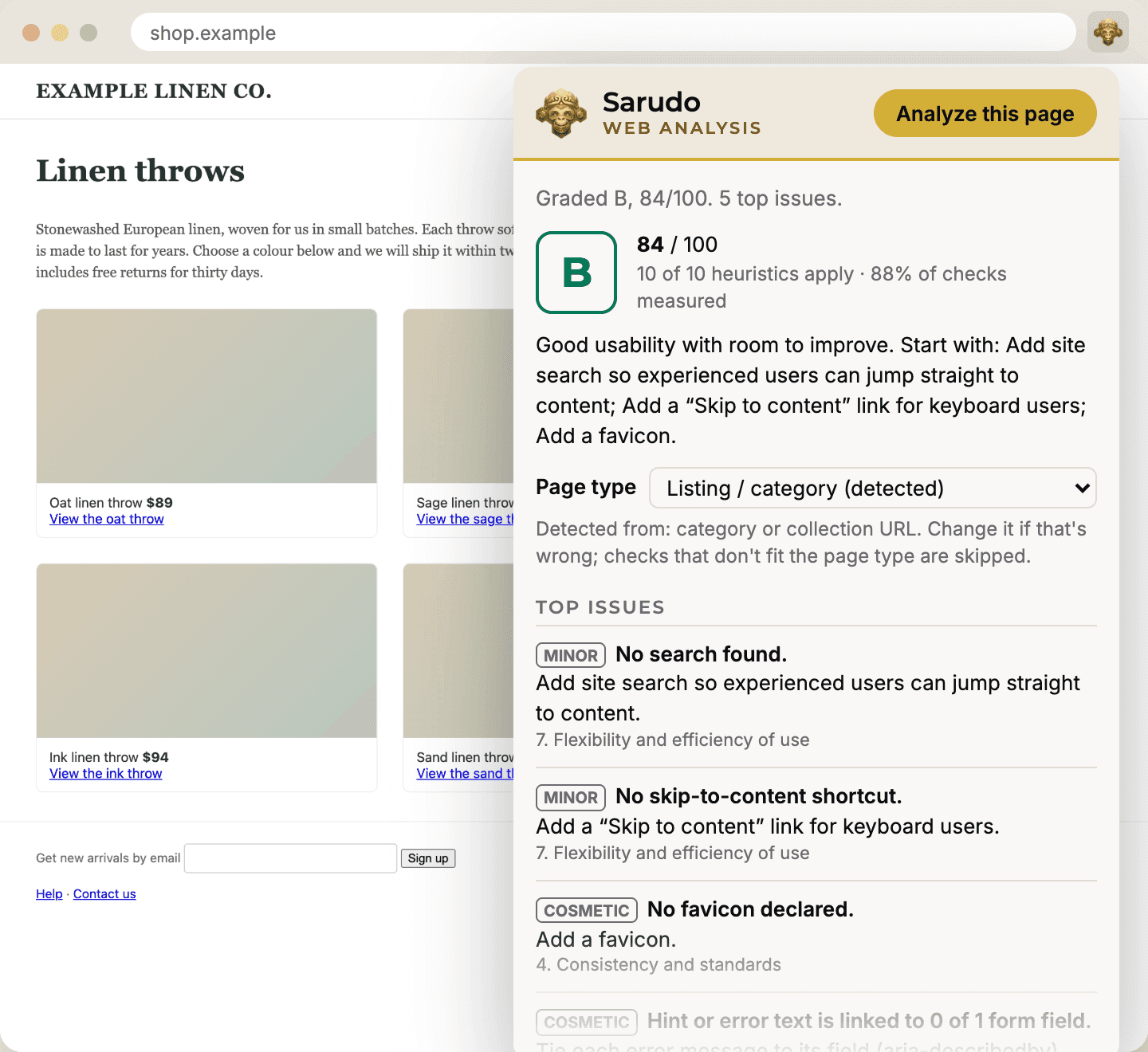
Jakob Nielsen's 10 usability heuristics are widely used rules of thumb for making websites easy to use. Sarudo Web Analysis checks the page against them, from what's actually on it.
A grade and a score out of 100
Every problem costs points depending on how serious it is. A critical one, such as a pop-up you can't close, sound that plays by itself or a form where most fields have no label, holds the grade at C or below until it's fixed.
The top issues, each with a fix
The most important problems come first, each marked Critical, Major, Minor or Cosmetic, with a concrete change to make.
A score for every heuristic
A score out of 10 for each of the 10 heuristics, the facts it measured and what to change. N/A means a heuristic doesn't apply, such as form checks on a page with no form.
It knows what kind of page it is
Home page, product page, checkout, article: checks that don't fit the page are skipped. If it guesses wrong, pick the right type and the grade updates.
What it can't judge
It reads the page as loaded, so it can't judge visual design, how the site behaves as you click through it, or content inside frames from other sites, such as payment boxes and cookie banners. PDFs, images and near-empty pages are marked Not graded instead of getting a misleading grade. Use the grade as a guide for a UX review, not a replacement for one.
Private by design.
It reads a page only when you click Analyze this page. It works out counts and yes/no facts in your browser, such as “12 links, 1 form field without a label”, and sends only those, plus the page's language and the kind of page it detected, to the scoring server on your own computer. It never sends the page's address, title or text. Nothing is stored, and nothing leaves your computer.
What you need.
Google Chrome 121 or newer
On macOS, Windows or Linux. ChromeOS isn't supported, because the server can't run there.
Python 3.10 or newer
It's free. Step 1 below shows how to check for it and install it if you need to.
Internet, while installing
The installer downloads the server's parts. After that it works offline.
Set it up.
Install the scoring server first, then add the extension to Chrome. Commands go in Terminal on a Mac or Linux, or PowerShell on Windows. Copy one with the button beside it, or click it once to select all of it and press ⌘ C or Ctrl + C.
Check you have Python 3.10 or newer
On a Mac, open Terminal (press ⌘ Space, type Terminal, press Enter). On Linux, open a terminal. Then type:
python3 --versionOn Windows, open PowerShell (press the Windows key, type PowerShell, press Enter) and type this instead:
py --versionIf it says Python 3.10 or higher, go to step 2. If it's older, or the command isn't found, install it. It's free.
- Mac: the Python that comes with macOS is too old. Download the installer from python.org/downloads, open it and click through. Then close Terminal and open it again.
- Windows: download the installer from python.org/downloads. On its first screen, tick Add python.exe to PATH, then click Install Now.
- Linux: install it with your package manager, for example
sudo apt install python3 python3-venvon Ubuntu.
Install the scoring server
Download the server, zip file, 17 KB and unzip it (on a Mac, double-clicking the zip does that). You'll get a folder called
sarudo-web-analysis-server-1.0.0in your Downloads.Mac or Linux
In Terminal, paste this line and press Enter:
cd ~/Downloads/sarudo-web-analysis-server-1.0.0 && bash install.shIt takes about half a minute and installs into a hidden folder in your home folder,
~/.sarudo-web-analysis.- On a Mac it also adds a login item, so the server starts now and every time you log in. If you'd rather start it yourself, paste this line instead of the one above; it then prints the command that starts the server:If you already ran the line above, first run
cd ~/Downloads/sarudo-web-analysis-server-1.0.0 && bash install.sh --no-autostartbash ~/.sarudo-web-analysis/uninstall.shto remove the login item. - On Linux it prints a command that starts the server. Run it now, and again whenever you want to use the extension, and leave the Terminal window open.
Windows
Open the unzipped folder (the one with
server.pyinside) in File Explorer, then Shift + right-click inside it and choose Open PowerShell window here. Run this once:py -3 -m venv .venv; .venv\Scripts\pip install -r requirements.txtThen start the server from the same folder, now and each time you want to use the extension, and leave the window open:
.venv\Scripts\python server.py- On a Mac it also adds a login item, so the server starts now and every time you log in. If you'd rather start it yourself, paste this line instead of the one above; it then prints the command that starts the server:
Add the extension to Chrome
- Download the extension, zip file, 155 KB and unzip it. On a Mac, double-click the zip. On Windows, right-click it and choose Extract All. On Linux, run this in a terminal:You'll get a folder called
cd ~/Downloads && unzip sarudo-web-analysis-1.0.1.zip -d sarudo-web-analysis-1.0.1sarudo-web-analysis-1.0.1withmanifest.jsondirectly inside. - Move that folder somewhere it can stay, such as your Documents folder. Chrome runs the extension from it, so don't delete it.
- In Chrome, open a new tab and go to this address. Web pages can't link to Chrome's own pages, so type or paste it into the address bar:
chrome://extensions - Turn on Developer mode with the switch at the top right.
- Click Load unpacked and choose the
sarudo-web-analysis-1.0.1folder.
Leave Developer mode on: recent versions of Chrome switch off extensions added this way when it's off.
- Download the extension, zip file, 155 KB and unzip it. On a Mac, double-click the zip. On Windows, right-click it and choose Extract All. On Linux, run this in a terminal:
Pin it to the toolbar
Click the puzzle-piece icon in Chrome's toolbar, then the pin next to Sarudo Web Analysis. Its button, a gold monkey face, now stays in the toolbar.
Check it's working
A setup page opens by itself when you add the extension. Within a couple of seconds its status turns green: ✓ The server is running. You're all set.
If it says the server isn't running yet: on a Mac, run the install command from step 2 again; on Windows or Linux, start the server (step 2) and leave its window open.
If the server isn't running later on, the extension says so when you press Analyze this page, with a Set up the local server → link that reopens the setup page.
Grade a page.
- Open any website.
- Click the Sarudo button (the gold monkey face) in the toolbar.
- Click Analyze this page.
You'll see the grade and score, the top issues and how to fix them, the kind of page it detected and a score for each heuristic. The report disappears when you close it; nothing is kept.
Remove it.
- Remove the server. On a Mac or Linux, run this in Terminal. It also removes the Mac login item.On Windows, close the server window and delete the unzipped folder.
bash ~/.sarudo-web-analysis/uninstall.sh - Remove the extension. Open
chrome://extensionsand click Remove on Sarudo Web Analysis. You can then delete its folder too.
If something's not right.
What the extension or the installer may tell you, and what to do about it.
- “The Sarudo Web Analysis server isn't running on this computer”
- On a Mac, run the install command again (step 2). On Windows or Linux, start the server (step 2) and leave its window open.
- “Python 3.10 or newer is needed” while installing
- Install Python from python.org (step 1), close Terminal and open it again, then run the install command again.
- “No such file or directory” after the
cdcommand - The folder has a different name or is somewhere else. In Terminal, type
cdand a space, drag the unzipped folder onto the Terminal window, press Enter, then runbash install.sh. - “…port 8420 is used by another program…”, “Port 8420 is already in use” or “Something else is answering on http://localhost:8420”
- Another app is using the port the server needs. Quit it, or restart the computer, then run the install again (Mac) or start the server again (Windows or Linux). If it says “already in use” but the extension works, a copy of the server is already running, and that's fine.
- “The Sarudo Web Analysis server is out of date”
- Download the latest server from this page and install it again. Reinstalling over the old one is fine. On Windows or Linux, close the old server's window first, then start the new one.
- “Open a normal http(s) web page first”
- The tab shows one of Chrome's own pages or a file from your computer. Open a website, one whose address starts with
http://orhttps://, and try again. - “Chrome doesn't let extensions read this page”
- Chrome blocks extensions on some pages, such as the Chrome Web Store and error pages. Try a normal website.
- “Manifest file is missing or unreadable” when you click Load unpacked
- That folder isn't the extension itself. Choose the folder that has
manifest.jsondirectly inside it. - The toolbar shows a letter instead of the gold icon
- Open
chrome://extensionsand click the ↻ reload arrow on Sarudo Web Analysis. - Sarudo Web Analysis is switched off in
chrome://extensions - Turn Developer mode back on and switch the extension on again. If Chrome can't find it, load the unzipped folder again (step 3).
To check the server by hand, open http://localhost:8420/health in Chrome. If it shows {"status":"ok",…}, the server is running.
Questions?
Write to support@sarudo.com. Say which step you're on and what you see.
Sarudo Web Analysis is an independent tool by Sarudo. It isn't affiliated with or endorsed by Nielsen Norman Group.